Multiple Response Optimization

  • Home /
  • Multiple Response Optimization
img

Example 10: Multiple Response Optimization (MRO)–Chemical Process

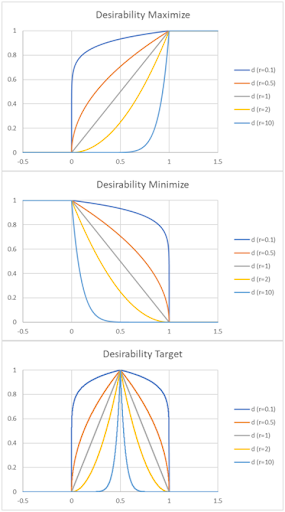
In their seminal paper, Derringer and Suich (1980), “Simultaneous Optimization of Several Response Variables.” Journal of Quality Technology [3], introduce the Desirability Function. Often, in process development, a single recipe must satisfy several performance requirements at once, and improvements to one property can often degrade another. Formulation and processing choices influence multiple, competing responses. Rather than optimizing each response in isolation, we translate engineering goals for every response—maximize, minimize, or hit a target within acceptable bounds—into individual desirability functions scaled from 0 (unacceptable) to 1 (fully desirable). These individual desirabilities are combined into a composite (overall) desirability—a weighted geometric mean—to search for operating conditions that deliver the best compromise across all responses. Because of this geometric nature, if any individual desirability value = 0, then the composite desirability will be 0. If all individual desirability values = 1, then the composite desirability will be 1. If the composite desirability is 0, try relaxing the requirements and rerun the MRO. If the composite desirability is 1, this suggests the problem was too easy, and you could try to tighten the requirements or increase the weights and rerun the MRO.

For formula details and a graphic of the desirability function, see the Appendix: Multiple Response Optimization.

We will consider the multiple response optimization problem given in Example 11.2 of Montgomery’s Design of Experiments book (Montgomery, D.C. (2020). Design and Analysis of Experiments, 10th Edition, John Wiley & Sons):

A chemical engineer wants to maximize a process yield (lower specification limit = 70%; practical upper limit = 80%), while maintaining a viscosity with target = 65 (lower specification limit = 62; upper specification limit = 68) and minimize the molecular weight (practical lower limit = 3200; upper specification limit = 3400).

In SigmaXL Importance allows for weighting of the responses according to their relative importance. Weight is a shape factor. For weight = 1, the desirability function increases linearly. This default setting of unity for both is used in this example.

The engineer selected a 13 Run Central Composite Design with controllable factors: time (80 to 90 minutes) and temperature (170 to 180 degrees F), where factor levels define the cube points (Central Composite Circumscribed).

We will also demonstrate the new multiple response optimization tools in SigmaXL Version 11.1: Overlaid Contour Plots, Desirability Contour Plots and the MRO Calculator.

  1. Open the file Montgomery MRO Example 11.2.xlsx.The runs are shown in the standard order used by SigmaXL, which is slightly different than the order shown in the book as it was an augmented design.
    img

  2. Click SigmaXL > Design of Experiments > Advanced Design of Experiments: Response Surface > Analyze Response Surface Design.

  3. Select Responses and Model Terms as shown with Term Generator as ME + 2-Way Interactions + Quadratic. Check Residual Plots:
    img

  4. Click OK. The Multiple RegressionModels and Residual Plots are given for Yield, Viscosity and MW.

  5. Click on the Model Yield and Residuals Yield sheets as shown.
    img
    With R-Square = 98.28%, the percent variation explained by the model is quite good. R-Square Adjusted = 97.05%, which includes a penalty for the number of terms in the model design matrix, is also good. R-Square Predicted = 91.84%, also known as Leave-One-Out Cross-Validation, indicates how well a regression model predicts responses for new observations and is typically less than R-Square Adjusted. This is also good.

    All terms are statistically significant except the Time*Temp interaction with P-Value = 0.1022. In the book, this is kept in the model retaining the full quadratic model and we will do the same here.

    The residual plot Histogram shows some possible bimodal clustering, but with a sample size of only N=13 and the Normal Probability Plot passing the “fat pencil” test, this was not considered to be a concern.

  6. Click on the Model Yield sheet and scroll to the Predicted Response Calculator. We will first explore the maximum Yield achievable, independent of the other 2 responses.

  7. Set the Goal as Maximize.
    img

  8. Click the Optimize button.
    img

  9. Click Yes.
    img
    Setting Time = 87 and Temp = 176.6, gives a maximum Yield = 80.2%.

  10. Click the Contour/Surface Plots button.
    img
    This gives us a good visual display of the Yield response, with the maximum of 80% at Time = 87 and Temp = 177. Now we will examine the other responses.

  11. Click on the Model Viscosity and Residuals Viscosity sheets to view the reports.
    img
    The R-Square value = 89.97% is good, but R-Square Predicted =44.02% is poor, indicating that the regression model would poorly predict responses for new observations.

    The only statistically significant terms are Temp and Temp*Temp, suggesting that Time should be removed from the model altogether, i.e., Viscosity is robust to Time. Removing the Time terms would also improve R-Square Predicted. However, in the book, the full quadratic model is kept,allowing contour plots to be created, so we will do the same here to maintain consistency in following the example.

    The residual plots do not show any obvious patterns or non-normality.

  12. Click on the Model Viscosity sheet and scroll to the Predicted Response Calculator. We will now explore the settings needed to achieve a target Viscosity = 65, independent of the other 2 responses.

  13. Set the Goal as Target with Target = 65.
    img

  14. Click the Optimize button.
    img

  15. Click Yes.
    img
    Setting Time = 85.7 and Temp = 178.9, gives a Target Viscosity = 65.

  16. Click the Contour/Surface Plots button.
    img
    This gives us a good visual display of the Viscosity response. While the calculated optimal target = 65 was achieved at Time = 86 and Temp = 179, the orange contour line shows the range of possible values that also give a Viscosity at the target value = 65.

    Now we examine the Molecular Weight (MW) response.

  17. Click on the Model MW and Residuals MW sheets to view the reports.
    img
    The R-Square value = 75.9 % is less than the 80% we like to see in a regression model, but the R-Square Predicted = 0% is unacceptable, indicating that the regression model would poorly predict responses for new observations.

    The only statistically significant terms are Time and Temp, suggesting that the interaction and quadratic terms should be removed from the model. This is what was done in the book, and we will do the same here. We could use stepwise/best subsets but we will simply remove the higher order terms.

  18. Click SigmaXL > Recall SigmaXL Dialog and enter the Responses and Model Terms as shown:
    img

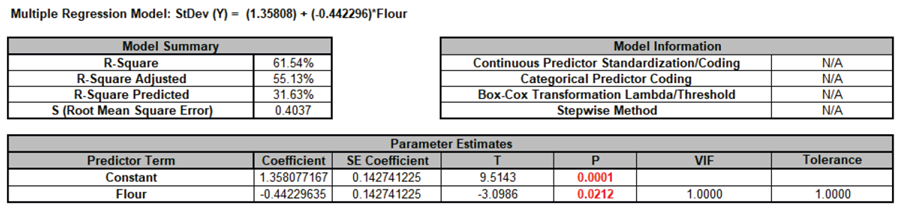
  19. Click OK. The revised Multiple Regression model and residual reports are given for MW as shown.
    img
    The R-Square value = 68.2 % is less than the 80% we like to see in a regression model. While the R-Square Predicted = 37.73% is low, it is a dramatic improvement over the previous 0%!

    The residual plots do not show any obvious patterns or non-normality.

  20. Click on the Model MW sheet and scroll to the Predicted Response Calculator. We will now explore the settings needed to achieve a minimum MW, independent of the other 2 responses.

  21. Set the Goal as Minimize.
    img

  22. Click the Optimize button.
    img

  23. Click Yes.
    img
    Setting Time = 77.9 and Temp = 167.9, gives a Minimum MW = 2845.3. Note, however, that a minimum MW = 3200 is acceptable.

  24. Click the Contour/Surface Plots button.
    img
    This gives us a good visual display of the Molecular Weight (MW) response. Comparing MW to Yield, we can see that the Time = 87 and Temp = 177 settings required for a maximum Yield = 80% give an unacceptably high MW of approx. 3500.

    To address thistrade-off in the response objectives, we will now perform Multiple Response Optimization using the Composite Desirability function, and the visual Overlaid Contour Plots & Desirability Contour Plots.

  25. Click SigmaXL > Design of Experiments > Advanced Design of Experiments: Response Surface > RSM Multiple Response Optimization.

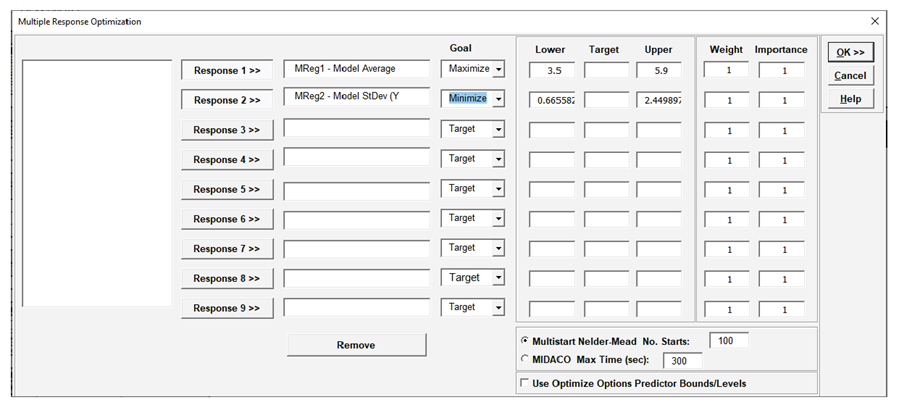
  26. Select Responses as shown, with the refined model RSM4 – Model MW for Molecular Weight MW. Set Goal, Lower, Target and Upper as shown. Check MIDACO with Max Time (sec) = 300 and Max Evals (x1000) = 200. Check Overlaid Contour Plots and Desirability Contour Plots.
    img
    MIDACO is slower than Multistart Nelder-Mead but is more powerful to find a global solution. For more information on the MRO options, see Multiple Response Optimization Dialog.

  27. Click OK. This will take about 1 minute:
    img
    The maximum composite desirability = 0.947 is slightly higher than the value given in the book, but they used a different goal for MW known as “In Range” (3200-3400) rather than “Minimize”. SigmaXL does not provide this option, however an approximate equivalent would be to use “Target” (3200, 3300, 3400)and set the Weight = 0.1, but we will not do so here.

    The input settings can be changed (in the yellow highlight region). If the values are changed, the Predicted Response values, Desirability values and Composite Desirability will be cleared. Click the MRO Calculator button to recalculate the new values.

  28. Click on the Sheet Overlaid Contour Plots. The contour lines are the response upper and lower bounds, with the feasible region that satisfies all bounds unshadedand the optimal (or specified) point shown as a red dot. This is a powerful graphical complement to the multiple response optimization. If there are more than 2 continuous factors, an Overlaid Contour Plot is created for every pairwise combination of factors and the other factors are held fixed at their optimal (or specified) values.
    img
    If you hover the mouse cursor on the red dot you will see the XY values for the optimum value computed by MRO. If the input values are changed in the MRO Calculator and the Overlaid Contour button clicked, then the red dot shows the specified input values.
    img
    You can also hover the mouse cursor anywhere on the plot to obtain XY values. This uses a transparent 100x100 grid.
    img
    Using the mouse cursor to explore the feasible (or infeasible) region, other input combinations may be considered and entered into the MRO Calculator.

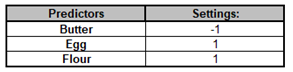
  29. Click the MRO Calculator Sheet, enter the XY values above in the yellow highlight region as shown and press the MRO Calculator button for the updated predicted response values and desirability values.
    img
    This is a degradation of the Composite Desirability.

  30. Press the Overlaid Contour button to recreate the Overlaid Contour Plots with these settings, with the red dot showing the input settings.
    img

  31. Having explored an alternate solutionand determined that it is sub-optimal, we will now restore the optimal settings by clicking the Reset to Optimal button.
    img

  32. Click on the Sheet Desirability Plots. The contour lines are composite desirability values. This is used to assess solution robustness, ideally looking for a flat response close to the optimal value.
    img

  33. The 3D Surface Plot can be rotated to view both feasible regions. Click on the chart, right click and select 3D Rotation.
    img
    Change the X Rotation to 60 degrees.
    img
    img
    Looking at the Contour and Surface Plots, we can see the region where all desirability values are greater than 0.8. This is a narrow region sensitive to Temperature variation, so tight controls will be needed to ensure that the optimum response values are maintained. Note, however, that it is quite robust to variation in Time.

    Tip: Excel does not permit mouse hover on the contour or surface plots, but the following demonstrates how you can view the data to get a detailed view of the desirability values. Click on the contour plot, right mouse click, Select Data:
    img
    img
    Click Cancel. Select Cell ID2, which is the upper left desirability value used in the Contour Plot.
    img
    Click View > Freeze Panes.
    img
    Now scroll over to view the Optimal values as given in the MRO Calculator:
    img
    Note that the columns are used for the chart X Axis, which is Time here. The rows are used for the chart Y Axis, which is Temp here. The nearest Time Column is JX, which is 84.5 (top frozen row). The nearest Temp Row is 84 which is 170.4 (first frozen column). Click on cell JX84 and reduce the zoom to 80%.
    img
    This gives a detailed view of the Time, Temp and Composite Desirability values around the optimal point.

    Next, we will apply Conditional Formatting to better view the results. Select all the desirability values (ID2: LY101). Click Home > View > Conditional Formatting > Greater Than…
    img
    Set Greater Than to 0.8.
    img
    Click OK. Click on cell JX84. The light red highlight makes it easy to view the values > 0.8, giving a more detailed view than that given in the Contour Plot.
    img

  34. When done, be sure to unfreeze the panes: View > Freeze Panes > Unfreeze Panes. Scroll all the way left and up to view the Contour Plot. Restore the zoom to 100%.

  35. Multiple Response Optimization can also be redone with tighter requirements, but we will not do so here.

Define, Measure, Analyze, Improve, Control

img

Simulate, Optimize, Realize

img